
Ultrawide vs. Dual Monitors: Which Setup Maximizes Office Productivity?
As hybrid work and complex digital workflows become the norm in 2026, professionals face a critical hardware choice: a single seamless ultrawide display or a traditional dual-monitor setup.
By Factlen Editorial Team
- Seamless Immersion Advocates
- Argue that the removal of the center bezel and the natural curve of ultrawide monitors drastically reduce neck strain and improve focus.
- Task Segregation Traditionalists
- Value the physical boundary between screens, arguing that dual monitors offer superior flexibility and easier screen-sharing.
- Hybrid Flexibility Seekers
- Prioritize modularity and budget, noting that dual setups allow for gradual upgrades and easier integration with portable laptop extenders.
What's not represented
- · Laptop Users Without Dedicated Desks
- · Corporate IT Procurement Managers
Why this matters
Your monitor setup dictates your digital posture, focus, and workflow efficiency for eight hours a day. Choosing the right configuration can eliminate neck strain, reduce desktop clutter, and fundamentally change how you interact with complex data and multitasking.
Key points
- Ultrawide monitors eliminate the center bezel gap, reducing neck strain by keeping primary tasks directly in the user's line of sight.
- Dual monitors offer superior physical flexibility, allowing users to rotate one screen vertically for coding or reading.
- Screen sharing on a 21:9 ultrawide can display black bars for viewers, requiring users to share specific windows rather than the full desktop.
- Premium ultrawides increasingly feature Picture-by-Picture software, allowing one physical screen to act as two virtual monitors.
As hybrid work and complex digital workflows solidify as the standard in 2026, professionals are increasingly scrutinizing their home office hardware. The monitor setup dictates digital posture, focus, and workflow efficiency for eight hours a day. The central debate for anyone upgrading their workspace has narrowed to a clear binary: investing in a massive, seamless ultrawide display, or sticking to the proven flexibility of a traditional dual-monitor configuration. Both approaches offer significantly more screen real estate than a standard single display, but they deliver that space in fundamentally different ways, altering how users interact with their applications.[2][7]
Understanding the physical geometry of these setups is the first step in evaluating their trade-offs. A standard dual-monitor setup typically pairs two 24-inch or 27-inch screens, each with a traditional 16:9 aspect ratio, placed side-by-side. An ultrawide monitor, by contrast, stretches the horizontal space into a 21:9 or even 32:9 aspect ratio, offering a panoramic canvas that can range from 34 to 49 inches diagonally. The 34-inch ultrawide with a 3440 by 1440 resolution has emerged as the sweet spot for most office workers, providing expansive workspace without overwhelming a standard desk.[1][3][5]
When analyzing the arguments for the ultrawide approach, the primary advantage is the complete eradication of the bezel gap. In a dual-monitor setup, the dead-center focal point is often a line of plastic where the two screens meet. To look at primary work, the user's neck must constantly turn slightly left or right. An ultrawide removes this barrier, allowing professionals to center their main document or application directly in front of their eyes, utilizing the massive peripheral space for reference materials or communication apps.[2][4]

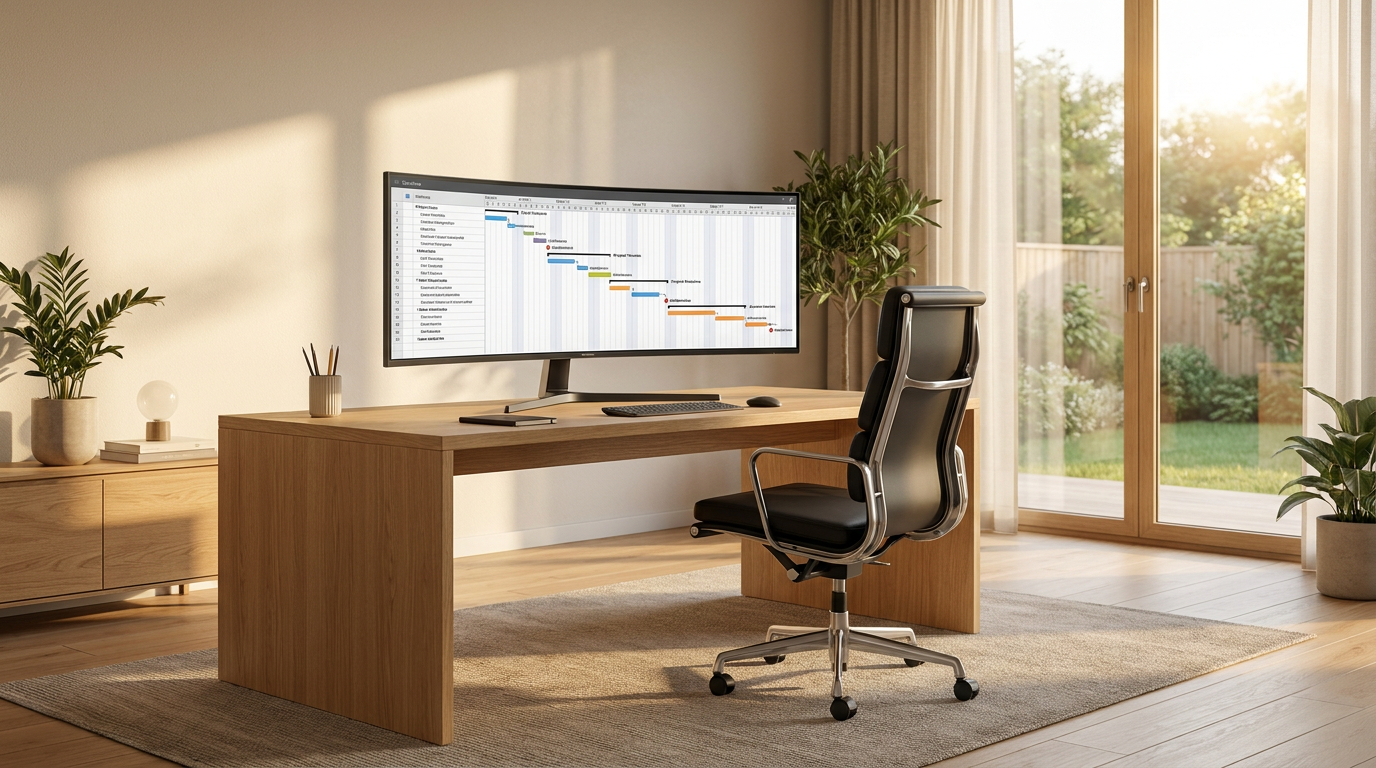
The ergonomic evidence supporting ultrawide monitors centers heavily on curvature. Many premium ultrawides feature a curved panel designed to match the natural radius of human vision. This curve ensures that the edges of the screen remain at the same focal distance as the center, reducing the need for the eyes to constantly refocus and minimizing the neck strain associated with glancing across flat, dual screens. For timeline-based workflows like video editing, financial modeling, or project management, this uninterrupted visual flow is a massive productivity multiplier.[1][3][4][5][6]
Against the ultrawide setup, critics frequently point to the friction of modern corporate communication, specifically screen sharing. When a user shares a full 21:9 or 32:9 screen on Microsoft Teams or Zoom, viewers on standard 16:9 laptops see massive black bars on the top and bottom, rendering the actual content unreadably small. While users can share specific application windows rather than the whole screen, this requires constant toggling during dynamic presentations, creating a workflow bottleneck that dual monitors naturally avoid.[7]
The argument for dual monitors rests heavily on true application segregation. Hitting the maximize button on an ultrawide fills the entire massive screen, which is rarely the desired outcome for a single text document or web page. Users must rely on software like Windows Snap Layouts or macOS window management to artificially carve the screen into zones. With a dual setup, maximizing an application perfectly fills one distinct physical boundary. This allows a user to dedicate one screen entirely to a video call while the other remains a private workspace for notes and reference materials.[2][3][4][5]
The argument for dual monitors rests heavily on true application segregation.
The evidence supporting dual monitor flexibility extends to physical orientation. A significant advantage of utilizing two separate screens is the ability to mix and match their physical positioning. Programmers, writers, and researchers frequently rotate one monitor into a vertical portrait mode to read long lines of code or extensive PDF documents without scrolling, while keeping the primary monitor horizontal for standard tasks. This level of physical customization is entirely impossible with a single ultrawide display.[3][5][7]

Against the dual monitor setup, the primary drawbacks are desk clutter and visual inconsistency. Two monitors require two power cables, two display cables, and either two bulky desktop stands or a heavy-duty dual-arm mount. Furthermore, unless a buyer purchases two identical monitors from the same manufacturing batch, there are often slight discrepancies in color calibration, brightness, and pixel density. Dragging a window from a crisp 4K primary screen to a lower-resolution secondary screen can be jarring and disrupt the visual cohesion of the workspace.[3][4][5]
Cost and upgrade paths also heavily influence this hardware decision. Dual monitors offer a budget-conscious, modular approach; a professional can start with one high-quality screen and add a second, cheaper display later specifically for holding email or chat applications. Ultrawide monitors require a significant upfront investment, essentially forcing the buyer to purchase all their screen real estate in one premium transaction. However, that single purchase often includes premium built-in features like USB-C hubs that power a laptop and handle display data through a single cable, drastically cleaning up the desk.[3][5]
To bridge the gap between these two philosophies, hardware manufacturers have introduced advanced features into premium ultrawides. Many modern 49-inch displays now include Picture-by-Picture (PbP) technology, which allows the monitor to accept two separate display inputs from the same computer. This effectively tricks the operating system into treating the single massive panel as two distinct 24.5-inch monitors, completely solving the screen-sharing dilemma while maintaining the seamless physical aesthetic.[6][7]

Ultimately, the ultrawide monitor fits well when the user prioritizes a minimalist, cable-free aesthetic, works heavily in timeline-based applications or massive spreadsheets, and prefers a curved display to maintain a consistent focal distance. It is the superior choice for deep, immersive focus where the software environment is managed through snapping tools rather than physical boundaries.[1][4]
Conversely, the ultrawide does not fit well when the user relies heavily on full-screen sharing without the technical know-how to utilize screen partitioning software, or when budget constraints require a gradual upgrade path.[3][7]
The dual monitor setup fits well when the professional requires strict physical segregation of tasks, frequently presents via video conferencing, or benefits from having one screen in a vertical orientation. It remains the gold standard for sheer flexibility and modularity in the home office.[2][3][5]

How we got here
2010s
Dual 1080p monitors become the standard for corporate and home offices, maximizing multitasking capabilities.
2018
34-inch ultrawide monitors begin gaining traction among creative professionals and gamers for their seamless canvas.
2020
The pandemic-driven shift to remote work sparks a massive surge in home office upgrades, bringing ultrawides into mainstream productivity setups.
2024
49-inch 'super ultrawide' monitors with 32:9 aspect ratios launch, effectively replacing two 27-inch screens without a bezel.
2026
Advanced Picture-by-Picture (PbP) software becomes standard, allowing single ultrawides to seamlessly mimic dual screens for video conferencing.
Viewpoints in depth
The Seamless Immersion Camp
Advocates for ultrawide displays prioritize a clean aesthetic and uninterrupted visual flow.
This perspective argues that the physical bezel gap in dual-monitor setups is a relic of older technology. By removing the center divide, users can center their primary application directly in their line of sight while using the peripheral space for reference materials. Proponents emphasize that curved ultrawides maintain a consistent focal distance from the eye to the edge of the screen, which ergonomic studies suggest reduces eye fatigue and neck strain during long work sessions.
The Task Segregation Camp
Supporters of dual monitors value the physical boundaries that help compartmentalize different workflows.
For this camp, the physical separation of two screens is a feature, not a bug. Hitting 'maximize' on a dual setup perfectly fills one screen with a Zoom call and the other with a spreadsheet, creating a satisfying mental and digital boundary. They argue that ultrawides require too much software micromanagement to achieve the same organization. Furthermore, this group highlights the practical benefits of mixing orientations—such as keeping one monitor vertical for reading long documents or writing code—which a single ultrawide simply cannot replicate.
The Hybrid & Mobile Camp
Professionals who prioritize modularity and the ability to work from anywhere.
This viewpoint emphasizes that productivity doesn't stop at the home office desk. They favor dual monitors—or more specifically, a laptop paired with a portable screen extender—because it offers a multi-screen experience that can be packed into a carry-on bag. To this camp, investing heavily in a massive, immovable 49-inch ultrawide ties a worker to a single physical location, defeating the purpose of modern hybrid work flexibility.
What we don't know
- Whether augmented reality (AR) headsets like the Apple Vision Pro will eventually render physical multi-monitor setups obsolete.
- How quickly OLED burn-in will affect productivity users who leave static spreadsheets on premium ultrawide screens for 8 hours a day.
Key terms
- Aspect Ratio
- The proportional relationship between a display's width and height, dictating how wide the screen appears.
- Bezel
- The plastic or metal frame surrounding the actual display panel of a monitor.
- Picture-by-Picture (PbP)
- A feature that allows a single monitor to display video from two different source inputs side-by-side simultaneously.
- Window Snapping
- Operating system features that automatically resize and lock applications into specific zones on the screen.
- IPS Panel
- In-Plane Switching, a type of screen technology known for superior color accuracy and wide viewing angles compared to older panels.
Frequently asked
Does an ultrawide monitor replace dual monitors?
For many professionals, yes. A 34-inch or 49-inch ultrawide offers the same or more screen real estate without the physical gap, though it requires relying on software for window management.
Is screen sharing difficult on an ultrawide?
It can be. Sharing a full 21:9 screen on a standard 16:9 display creates large black bars for viewers. Users must share specific application windows or use screen partitioning software to avoid this.
Which setup is better for neck ergonomics?
Curved ultrawides keep the entire screen at a consistent focal distance, reducing the need to turn your head. Dual monitors often force users to look slightly off-center, which can cause strain over time.
Can I use one vertical and one horizontal monitor?
This is a major advantage of dual monitor setups. You can rotate one screen vertically for coding or reading, which is physically impossible with a single ultrawide.
Sources
Source coverage
7 outlets
3 viewpoints surfaced



[1]Laptop OutletHybrid Flexibility Seekers
Ultrawide vs Dual Monitors for Work
Read on Laptop Outlet →[2]CevatonHybrid Flexibility Seekers
Ultrawide vs Dual Monitors: Which is Right for You?
Read on Cevaton →[3]BoxTask Segregation Traditionalists
Ultrawide vs Dual Monitor Setups
Read on Box →[4]ViewSonicSeamless Immersion Advocates
Ultrawide vs. Dual Monitors: Which is the Best Overall Setup?
Read on ViewSonic →[5]StandeskSeamless Immersion Advocates
Ultrawide vs Dual Monitors for Productivity in 2026
Read on Standesk →[6]MWaveTask Segregation Traditionalists
Ultrawide vs Dual Screen Setups
Read on MWave →[7]Factlen Editorial Team
Synthesis by Factlen editorial team
Read on Factlen Editorial Team →
Every angle. Every day.
Get shopping stories with full source coverage and perspective breakdowns delivered to your inbox.